

Your first Semrush audit may show a long list of errors and warnings. Before changing your website, check one thing: did the audit scan the pages you needed it to scan?
A report can look detailed while covering only part of your site. It can also flag a real issue that has little effect on your visitors.
This Semrush Site Audit tutorial explains how to set up your first crawl, check its coverage, and turn the findings into useful tasks. You will also see a fictional example of a missing service page and learn how to check the result after a fix.
Quick answer: Open Site Audit, select your website scope, choose a crawl source, and set a page limit that fits your account. Run the audit, confirm that important URLs appear in the results, and inspect the pages behind each issue. Fix verified problems in priority order, then compare a fresh crawl with your starting point.
This guide is based on Semrush’s public documentation checked on November 1, 2026. It is not a live audit of a client website or a hands-on test of every paid feature.
What is Semrush Site Audit?
Semrush Site Audit is a website crawler. A crawler visits pages and checks technical details such as links, response codes, and page information.
The tool organizes findings so you can investigate problems. It does not replace the judgment needed to decide whether a change is right for your website.
For example, an inaccessible public service page may need urgent attention. A private confirmation page that is intentionally kept out of search needs a different response.
Start with a clear question instead of trying to remove every warning at once. A useful first question is: “Can people reach our main services and complete the next step?”
Our technical SEO checklist can help you keep the wider website review organized.
What can you check with a free account?
Semrush’s Site Audit documentation lists an allowance of 100 pages per month without an SEO Toolkit subscription, with a maximum of 100 pages in one audit. The monthly allowance resets on the first day of the month, and unused pages do not roll over.
The same documentation lists paid monthly crawl allowances of 100,000 pages for Pro, 300,000 for Guru, and 1,000,000 for Business. These are product limits, not targets for a successful audit. Check the limits shown in your own account before running a scan.
For a small first review, plan enough room for both the initial scan and a follow-up.
Here is a simple planning example. Two scans of the same 40-page set would involve about 80 page crawls. That calculation helps explain why using the full allowance immediately may leave little room to check changes during the same month. Actual usage depends on your crawl and account.
Do not describe a 40-page sample as a complete audit of a 500-page website. A focused review can be useful when its limits are clear.
Before setup: make an important-page list
Write down a short list of pages that the audit must include.
For a service website, this might contain the homepage, main service pages, pricing information, and the contact page. For a shop, it might include key categories and a sample of products.
| Page type | Why include it? | Manual check to add |
|---|---|---|
| Homepage | Often helps visitors choose where to go | Can a new visitor identify the main offer? |
| Main service page | Explains a service people may buy | Does its contact or booking link work? |
| Contact page | Supports inquiries | Does a labeled test message reach the right person? |
| Important article | Answers a question for potential customers | Are the explanation and sources still accurate? |
| Product or category page | Supports shopping decisions | Are key details readable on a phone? |
Save the list with your audit notes. You will use it later to check whether a page is healthy, missing from the scan, or outside the chosen scope.
This distinction matters: a page absent from the report has not passed the audit. It may simply not have been checked.
Step 1: Set the website scope and crawl source
Open Site Audit for your website and review its settings. Semrush may launch an initial audit automatically when you create your first project. Check its setup before treating that scan as your planned audit.
In Semrush’s configuration guide, scope defines the domain, subdomain, or subfolder to inspect. Review the option to include subdomains.
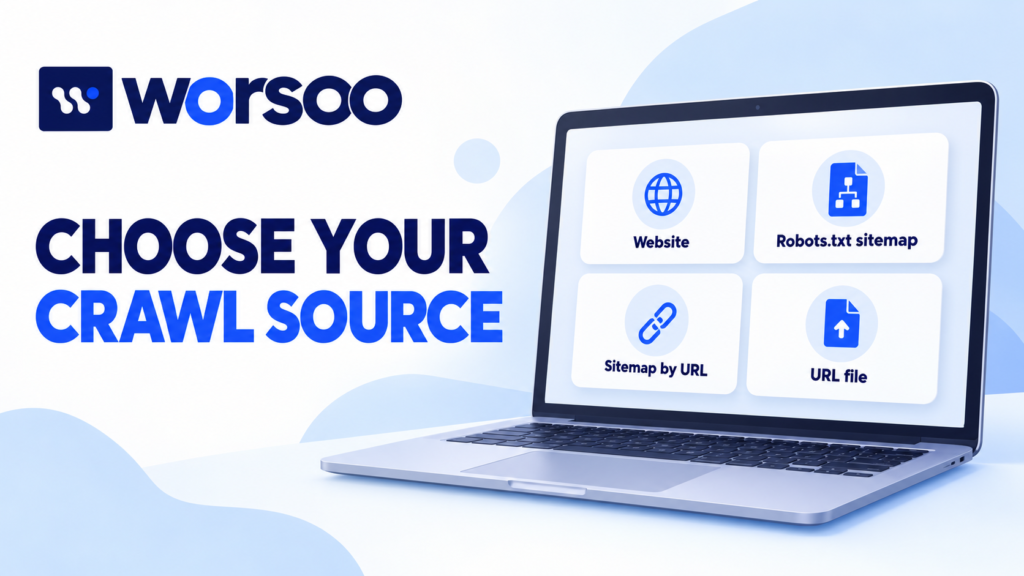
The crawl source controls how URLs are selected:
| Source | What it does |
|---|---|
| Website | Follows links from the homepage |
| Robots.txt sitemap | Uses URLs from the sitemap linked in robots.txt |
| Sitemap by URL | Uses the sitemap address you supply |
| Import URLs from file | Uses an uploaded list of selected pages |
An imported CSV or TXT file should contain one URL per line. Set the limit per audit to fit your available allowance.
Choose the source to match the question
Use a link-following crawl when you want to investigate what can be reached through the website’s links. A selected URL list is useful when you need to inspect a known set of pages.
These answer different questions. A page can be included in a supplied list even if visitors struggle to find it through the website.
For your audit notes, record both the source and the purpose. “Checked selected service URLs” is more precise than “checked the whole site” if you uploaded a short list.
Step 2: Record the conditions before you run the audit
Take a moment to record the settings you are using. You do not need a long technical document.
| Audit note | What to record |
|---|---|
| Date | When the crawl was started |
| Scope | Whole website or selected section |
| URL source | Links, sitemap, or uploaded list |
| Page limit | The maximum set for this audit |
| Reference pages | Important URLs you expect to inspect |
| Known limits | Login areas, excluded sections, or incomplete coverage |
| Purpose | The decision this audit should help you make |
This record becomes useful when results change. If you later scan a different section, a change in the number of errors may reflect the new scope rather than a change in the site.
Do not copy another website’s settings without understanding them. A large shop, a small agency website, and a web application have different structures.
If you are unsure about a setting, read its help text or ask the person responsible for the website before relying on the result.
Step 3: Confirm coverage before reading the score
When the audit finishes, check its status and the pages it inspected.
Search for the URLs on your important-page list. If one is missing, make a note and investigate the reason.
Ask these questions:
- Did the crawl finish, or did it stop at a limit?
- Were the expected sections included?
- Did the selected source contain the missing URL?
- Could the crawler access that page?
- Was the page intentionally excluded?
Suppose your service website has 60 pages, but the report contains only 20. That may be a useful sample. It is not enough evidence to say the other 40 pages have no problems.
Also compare access from a normal browser with what the crawler reports. A page that opens for you may still block a crawler. A page that opened yesterday may be unavailable during the scan.
Record the observation and time before choosing a fix. “Reported as inaccessible during this crawl” is more accurate than “always broken” when you have only one observation.
Step 4: Understand the Overview and Issues reports
Semrush’s Overview report guide describes a Site Health score from 0% to 100%, based on errors and warnings relative to the checks performed. Errors carry more weight than warnings.
The Overview also shows crawled-page categories and top issues. Open the Issues area to investigate the findings. Thematic reports cover areas such as crawlability, HTTPS, performance, and internal linking.
Use these reports to locate evidence, then inspect the affected page.
A score is not a business result
A higher score does not prove that visitors understand the page, that a form reaches your team, or that search traffic has increased.
Keep three questions separate:
- Technical: What did the crawler find?
- Visitor: Can a person complete the intended task?
- Business: Are useful inquiries, bookings, or purchases changing?
For example, a page may have no obvious technical errors while giving visitors no clear reason to contact you. That needs a content or offer review, not just another crawl.
Do not treat every warning as a required edit. Confirm what it describes, why it matters, and whether the behavior is intentional.
Step 5: Turn one finding into a verified task
Choose a finding that could affect an important visitor journey. Open the affected URLs and inspect a representative example.
Write the task in plain English. Include the location, the observed behavior, the proposed action, and the completion check.
Worked example: a service page is missing from navigation
Imagine a fictional small-business website with a useful service page at /services/window-cleaning/.
The page opens when its address is entered directly. However, it is absent from the first link-following crawl. You then notice that the main services menu does not link to it.
This is a clue, not yet proof that the page has no internal links anywhere. Review other likely paths and available link evidence before describing it as an orphan page.
| Review stage | Fictional observation | Next action |
|---|---|---|
| Coverage check | The service URL is missing from the crawl | Confirm scope and whether the crawl stopped early |
| Direct visit | The page opens and describes a current service | Confirm it is intended to be public |
| Navigation review | The main services menu omits it | Check other relevant internal links |
| Decision | The owner wants visitors to find this service from the menu | Add an appropriate link in the intended navigation |
| Verification | The link is visible and opens the correct page | Test on a phone and desktop, then run a comparable crawl |
The useful outcome is a clearer route to the service. A change in an issue count is supporting evidence, not the whole result.
If the page describes a discontinued service, the right decision could be different. Confirm the business need before adding links just to satisfy a tool.
Use our SEO audit template to record the finding, owner, and next step.
Step 6: Prioritize by impact and confidence
You do not need to act on every finding during the first review.
Start with problems you can verify that affect important pages or actions. Then consider the effort needed and who can make the change safely.
| Finding | Suggested priority | Reason |
|---|---|---|
| A key public page fails to load | Investigate promptly | Visitors may be unable to use it |
| An important service has no clear navigation path | Review promptly | People may struggle to find the service |
| Several links point through an unnecessary redirect | Plan after higher-impact work | A direct link may simplify the path |
| A title is flagged for length | Review its meaning and context | Length alone does not prove the title is ineffective |
| A private confirmation page is excluded from search | Confirm the intended setup | Some exclusions are deliberate |
These are examples, not universal rules. A minor-looking issue can matter more on a high-value page than a large count of warnings elsewhere.
Group repeated findings when they share a cause. If a menu problem affects many pages, one template change may be the real task. Still check the important affected pages after the change.
Step 7: Check fixes with a comparable crawl
After a change is live, test it directly before running another audit.
Semrush’s Compare Crawls and Progress guide explains how to select two audit dates and review new and fixed issues. The Progress view tracks changes in selected metrics across audits.
Compare scans that answer the same question. Keep the scope, source, and relevant settings consistent, or clearly explain what changed.
For the fictional service-page example, verify that:
- The menu link is present where visitors expect it.
- The link opens the intended service page.
- The page works on the devices you tested.
- The fresh link-following crawl includes the page.
- The date and result are saved in the task record.
If an issue disappears because a page was excluded from the second scan, you have not proved that the underlying problem was fixed.
Do not mark a task complete until its own completion check passes.
What about AI Search Health, AEO, and GEO?
Semrush’s Overview includes AI Search Health and blocked-status information intended to help investigate AI-related access and optimization.
Treat these as vendor assessments and technical clues. They are not evidence that a particular AI service has cited your website.
For a clear report, separate three types of evidence:
| Evidence type | Example of an accurate statement |
|---|---|
| Crawl observation | The selected crawler could access the page during this audit |
| Content review | The page answers a specific question and identifies its sources |
| Observed AI citation | A named service linked to the page for a recorded query on a stated date |
A technical score cannot replace the third check. Different services also use different systems, so avoid claiming that one audit proves visibility everywhere.
For the page itself, keep the main answer clear, explain unfamiliar terms, and support important facts with sources. These are useful editorial checks alongside the technical review.
How to report the first audit without overclaiming
A useful first report should tell the website owner what was inspected, what you verified, and what needs a decision.
Include:
- The audit date, scope, and known limits.
- The most important verified findings.
- The likely effect on visitors.
- The proposed owner and next action.
- The evidence needed to confirm each fix.
Keep search performance separate from completed technical work. If impressions are rising but clicks remain low, inspect the page’s actual queries and positions before blaming a title or description.
A tutorial title should make its purpose clear. A searcher who wants instructions needs a different page from someone trying to open the Semrush product itself.
Our SEO audit report example shows how to organize findings into a readable report.
Common questions about Semrush Site Audit
Is Semrush Site Audit free?
The current documentation lists 100 pages per month without an SEO Toolkit subscription. Check your account’s remaining allowance before running the initial scan and follow-up.
Which crawl source should I choose first?
Choose the source that fits your question. Following website links helps investigate discoverability through links. A sitemap or selected URL list helps inspect known pages. Record which approach you used.
Why are important pages missing?
Review scope, crawl limits, source URLs, access problems, and exclusions. Do not assume that a missing page has passed the checks.
Should I aim for a perfect Site Health score?
Use the score to support investigation. Prioritize verified problems and useful visitor outcomes. A perfect score does not prove that every part of your SEO or customer experience is complete.
Will fixing errors guarantee more traffic?
No. Technical fixes can remove specific problems, but search visibility also depends on the page, the query, and competing results. Measure actual changes rather than promising a traffic increase from a score.
Need help reviewing your Semrush findings?
Start with the important-page list and one verified issue. Decide what should change, assign an owner, and agree on how to check the result.
Explore Worsoo’s SEO services and share your website, the purpose of your audit, and the finding you need help understanding. We can discuss the technical review and next steps your site needs.